
Runs from the moment Windows starts
A background service takes your scheduled backups even when the app is closed or nobody is signed in. It starts at boot, restarts itself after a crash, and never runs the same job twice.
v1.7.1 · Windows 10 & 11 · clone & restore free
Schedule pg_dump backups, clone databases between servers and restore in a few clicks — from a clean Windows app with a background service that starts at boot.
Features
A background service takes your scheduled backups even when the app is closed or nobody is signed in. It starts at boot, restarts itself after a crash, and never runs the same job twice.
Copy production into staging — or any database into any other, on the same server or a different one. The target is created for you if it doesn't exist.
Pick a backup from the history or any .dump / .sql file and restore it into any database. Optionally wipe the target first so it's an exact copy.
Add a server once, then pick the database for each job, clone or restore from a live list — including brand-new databases.
Keep the last N backups, plus the newest from each of the last so many hours, days, weeks, months and years. Old files are pruned automatically — and a job only ever touches its own files, even in a shared folder.
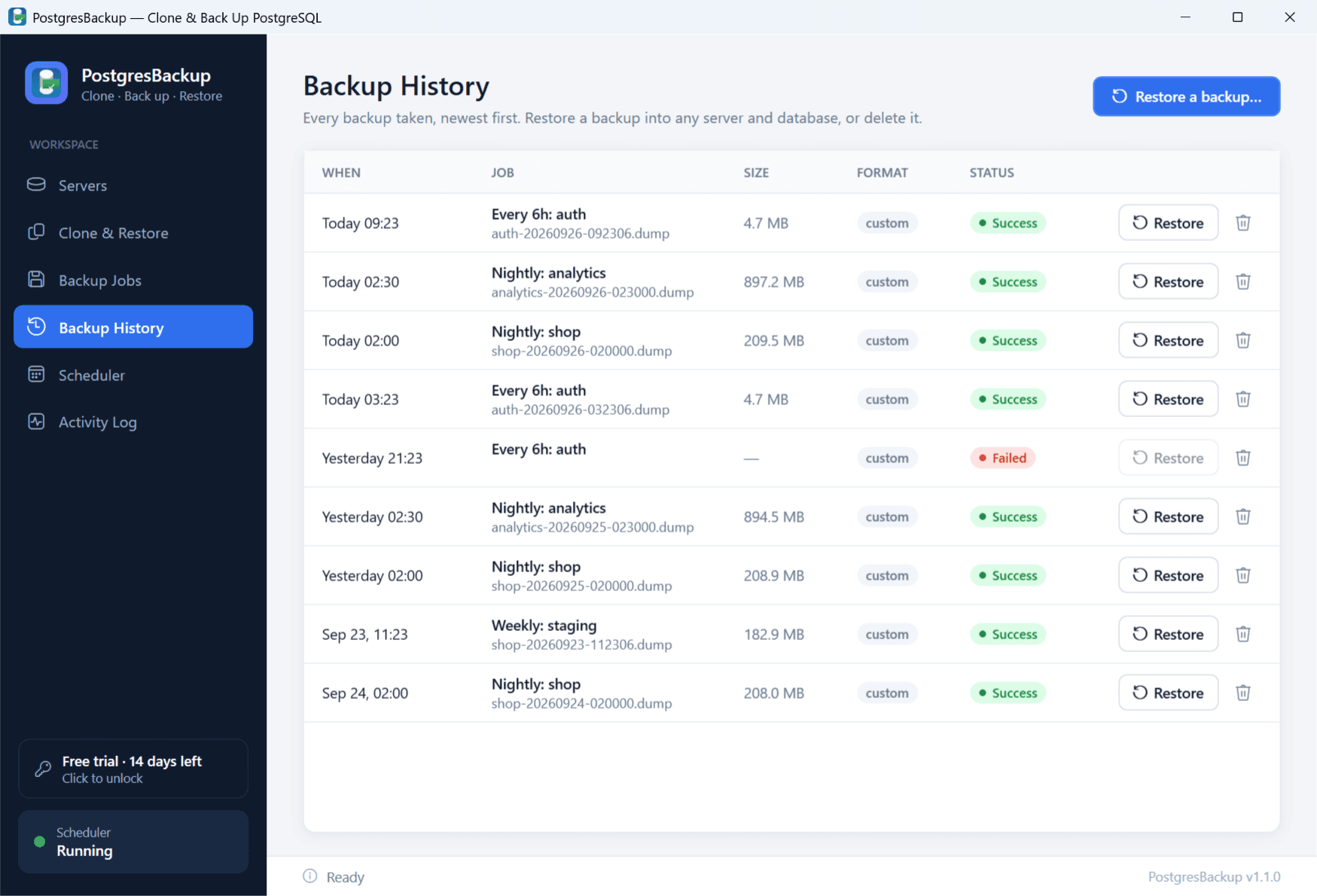
A live progress banner shows the table being dumped and the time elapsed. A searchable Activity Log records everything the app and the service do.
You confirm before anything is overwritten, and cancelling cleans up half-written files. Passwords are never shown, and settings are locked to your account.
Backups are ordinary PostgreSQL custom-format dumps. Restore them with PostgresBackup — or with pg_restore on any machine. No lock-in.
The night shift
Nightly dumps of your big databases at the minute you choose, a quick one of the critical one every six hours — each on its own schedule, each pruned by the rules you set.
How it works
Enter a host and login once — or paste a connection string. Test it and see every database it holds.
Pick the database, a folder, how often (or a fixed time of day) and how many backups to keep.
The background service takes it from there — from boot, every day, whether or not the app is open.
Screens
Pricing
Free
$0 for good
License
$9.99 once
$24 from January 1. Buy now and it's yours at $9.99, updates included.
Secure checkout by Stripe. Your card details never reach our servers.
After the 14-day trial, only scheduled backups pause. Manual backups, clones, restores and every backup you've made stay free: you are never locked out of your data. Backing up more often than once a day (hourly, or every few hours) needs a license, even during the trial.
Download
For Windows 10 & 11 (64-bit). Includes the PostgreSQL client tools (pg_dump, pg_restore, psql), so there's nothing else to install.
New downloads can show “Windows protected your PC”. Click More info, check the publisher reads Frank Buchner, then Run anyway. Why?
Get an email when a new version is out
A short note when PostgresBackup gets a new version: what changed and why it matters. A few emails a year, never shared. You'll confirm by email first, and every message has an unsubscribe link.
Guides
Step-by-step guides to PostgreSQL backups on Windows with pg_dump, PowerShell and Task Scheduler, for your own server and for Supabase, Neon, RDS, Azure, Docker and more.
All guides →Generate a backup script →Compare with pgAdmin, SQLBackupAndFTP and others →
FAQ
Windows 10 or 11 (64-bit). That's it: PostgresBackup brings its own PostgreSQL client tools (pg_dump, pg_restore, pg_dumpall and psql from PostgreSQL 18), and if your PC has a newer PostgreSQL installed, it uses that one instead. It runs on Microsoft's free .NET 10 Desktop Runtime; if your PC doesn't have it, Setup downloads and installs it for you.
Any PostgreSQL server you can connect to with a username and password: self-hosted, Docker, Neon, Supabase, Amazon RDS, Azure, Google Cloud SQL and so on. SSL connections are supported.
Yes, and it's a good fit: Supabase doesn't take automatic backups of free-plan projects. Add the server with the Session pooler connection string (in Supabase: Connect → Session pooler, port 5432). The direct db.<project>.supabase.co address only works over IPv6 unless the project has the IPv4 add-on, and the transaction pooler on port 6543 doesn't work with pg_dump. PostgresBackup points both out when you add the server.
No. The installer adds a small background service that starts with Windows and runs your scheduled backups even when the app is closed or nobody is signed in. You can start, stop or remove it from the app's Scheduler page.
Scheduled backups pause until you enter a license code. Manual backups, clones, restores and all your existing backup files stay free, for good. A license is $9.99 once (launch price; $24 from January 1): no subscription, updates included.
On your computer, and nowhere else. Server logins live in the app's settings folder, which only your account, Administrators and the background service can read. Backups go to the folders you choose. There is no cloud account, and the app never reports what you do in it. Besides your own databases, it only contacts this site to activate a license and to check for updates (which you can switch off); those requests carry its version and a random install ID so we can count installs per version.
PostgresBackup checks this site for a new version once a day. When one is out, it shows you what changed and can download and install it for you — your servers, jobs, backups and license are kept. Updates are free for everyone with a license. You can also see every version's changes on the release notes page, or switch the automatic check off in the app.
Yes. Backups are standard pg_dump custom-format files, so pg_restore (or any tool that reads them) can restore them on any machine.
Yes. The installer, the app and the background service are all digitally signed by the publisher, Frank Buchner, through Microsoft's code-signing service. Windows checks that signature and shows “Verified publisher: Frank Buchner” when the installer asks for permission. You can also right-click the downloaded file → Properties → Digital Signatures to see it.
If you want to be thorough, compare the file's SHA-256 checksum with the one in the download section above. A match means the file is exactly the one published here.
That's Microsoft Defender SmartScreen. It warns about any program that hasn't been downloaded by many people yet, whether or not it's signed. It happens to most new apps from small, independent developers and to each new release until enough people have installed it. The warning goes away on its own as the download count grows.
To continue, click More info. Check that the publisher shows as Frank Buchner, then click Run anyway. Your browser may also say the file “isn't commonly downloaded”. In Edge, open the download's … menu and choose Keep.
If the publisher shows as “Unknown publisher” or a different name, don't run the file. Delete it and download it again from postgresbackup.com.